Functions
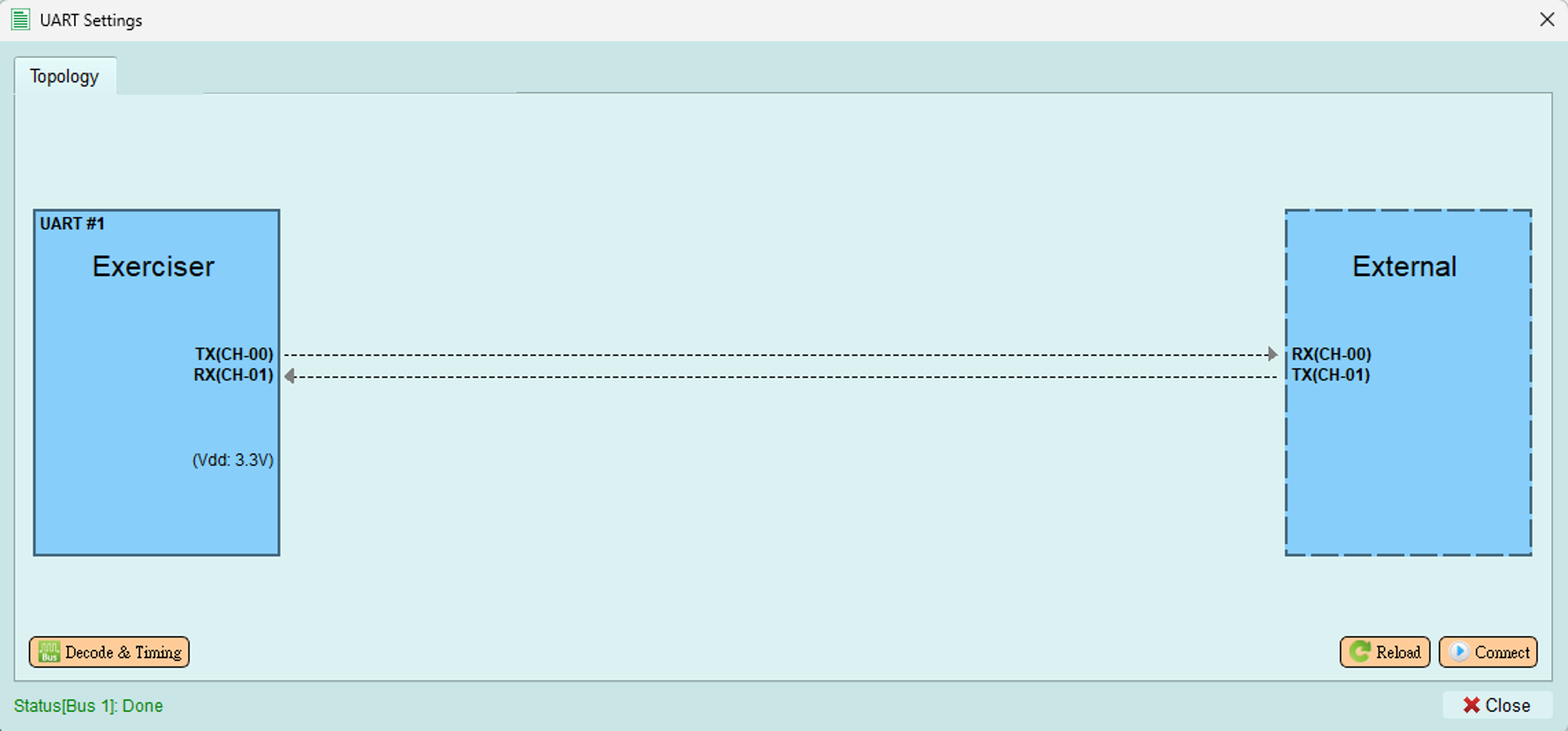
After you enable the bus, the buttons below become available.
Connect
Establish a connection with an external UART device.
Reload
Reload the connection status and display.
Decode & Timing
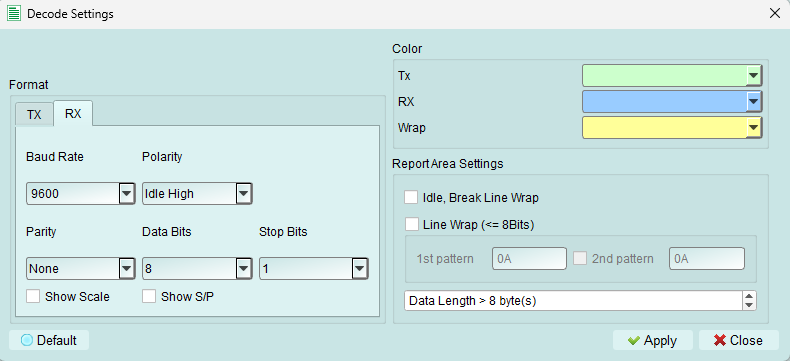 Set the UART decode parameters for the Logic Analyzer.
Send packet
To open the wizard, see Wizard.
Quick Send
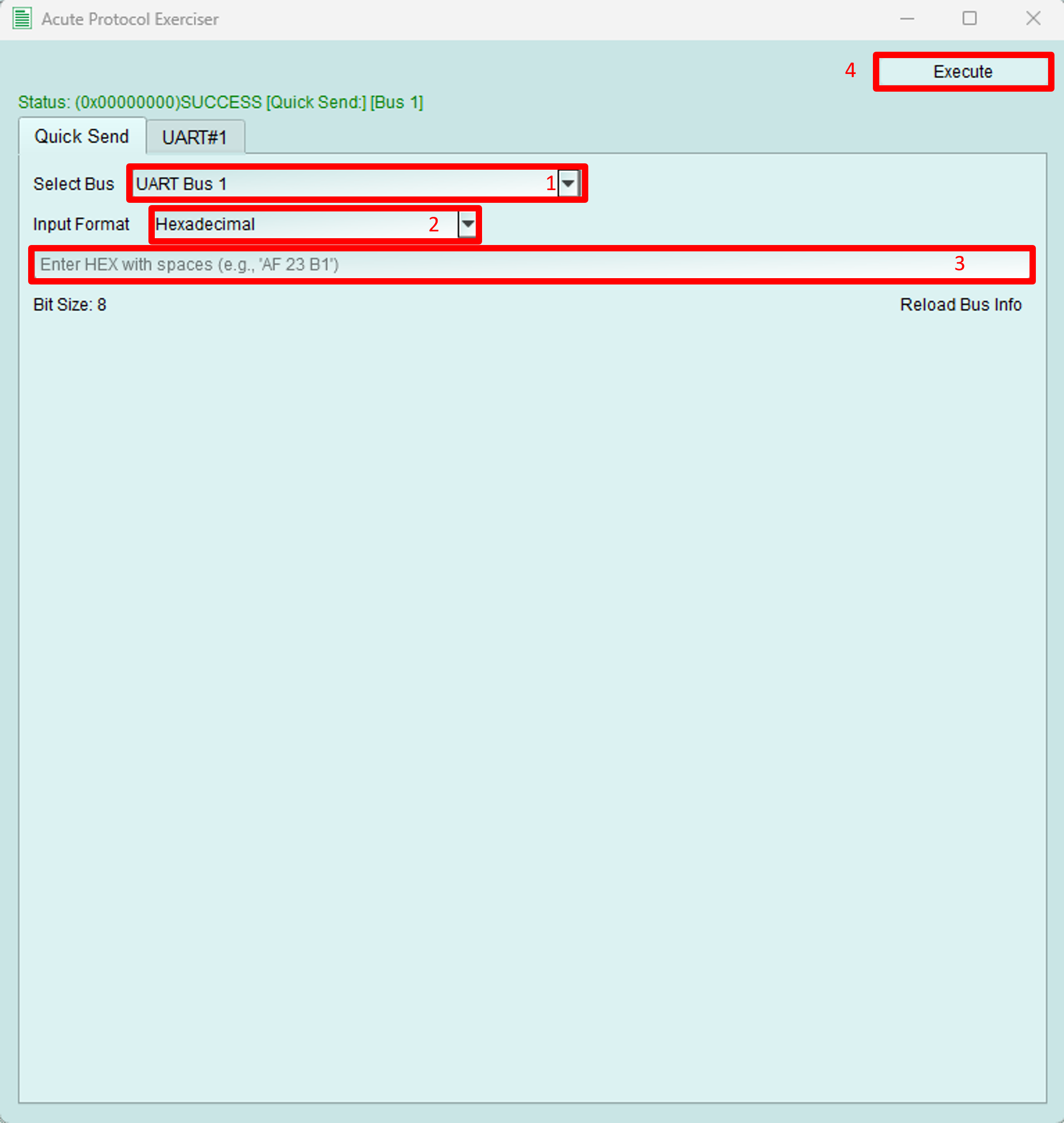
- Choose which bus to send the packet from.
- Choose the input data format for readability. The supported formats are:
- Hexadecimal
- Decimal
- Binary
- Binary (space separated): use a space to separate each binary value.
- ASCII In Binary format, values are grouped by the bit size, and any remaining bits are padded with zeros. For example, if the bit size is 4 and the data is 10101, the data sent is 0001 0101.
- Enter the data to send, in the selected input format.
- Send the packet.
Packet Constructor
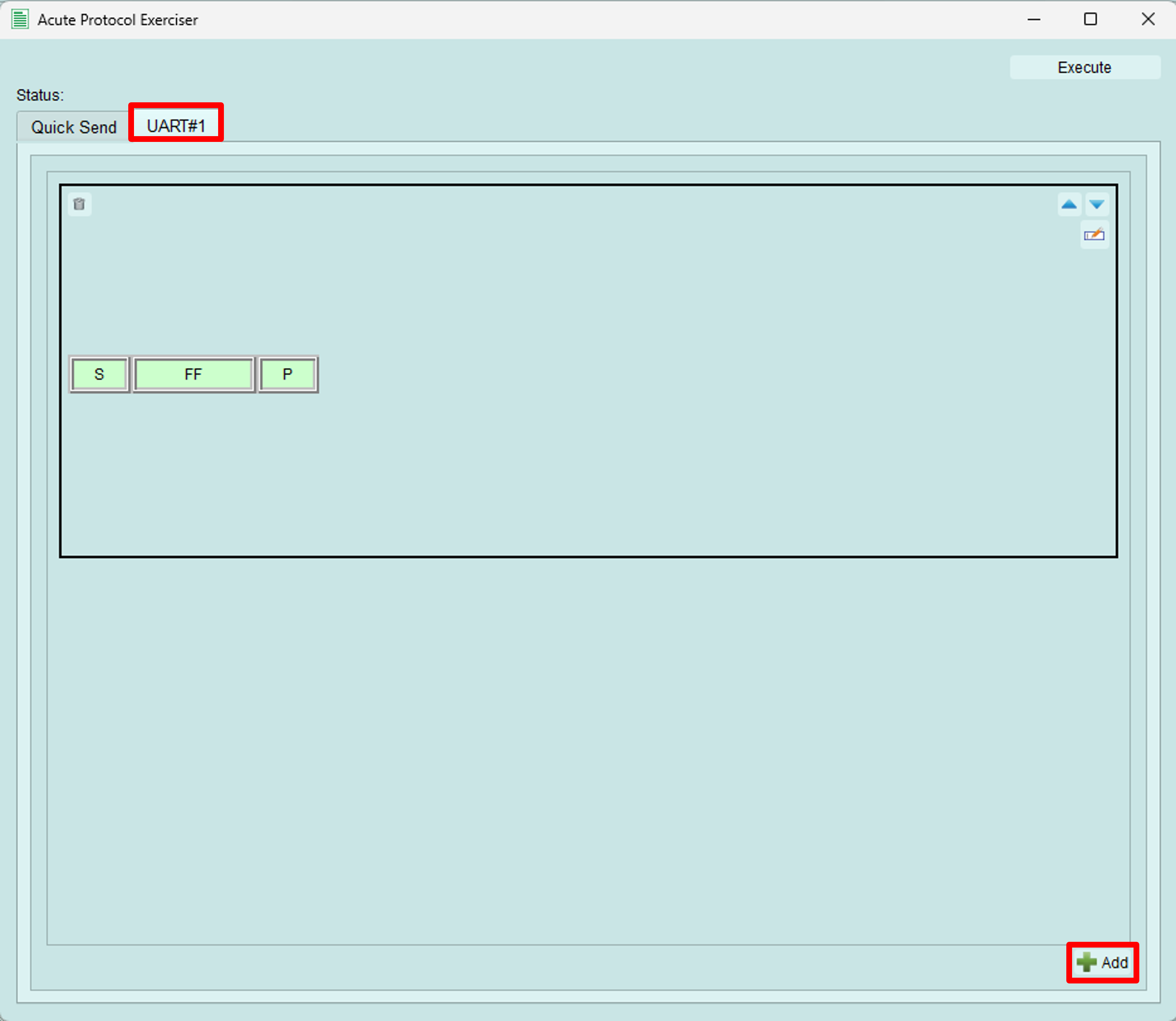
Switch to the Bus tab and click the Add button at the bottom right to create a packet.
After editing the packets, click Execute to send them.
Edit Packet
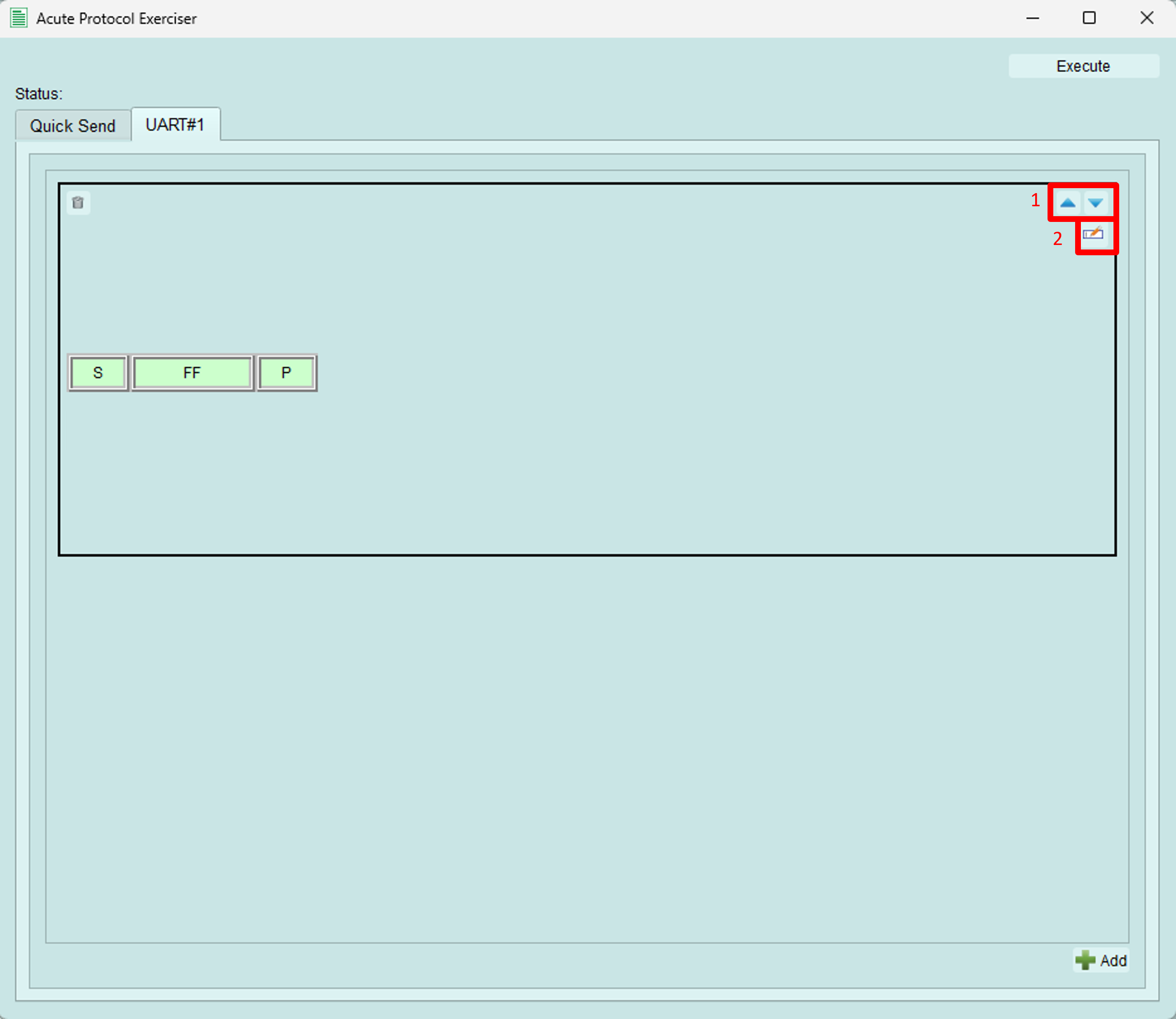
- Adjust the packet order.
-
Open the detail editing dialog.
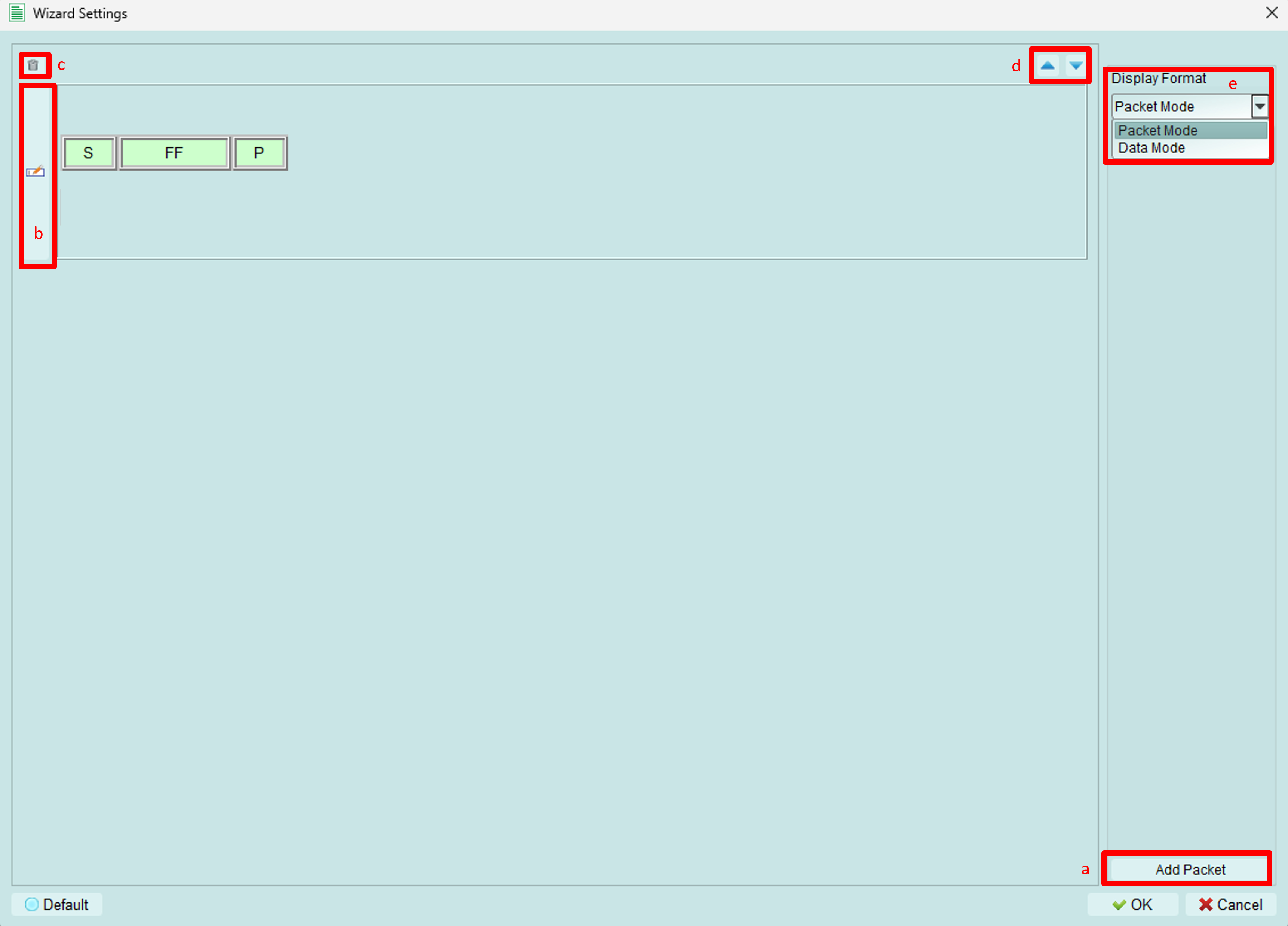
- Add a UART packet.
-
Edit the packet in detail.
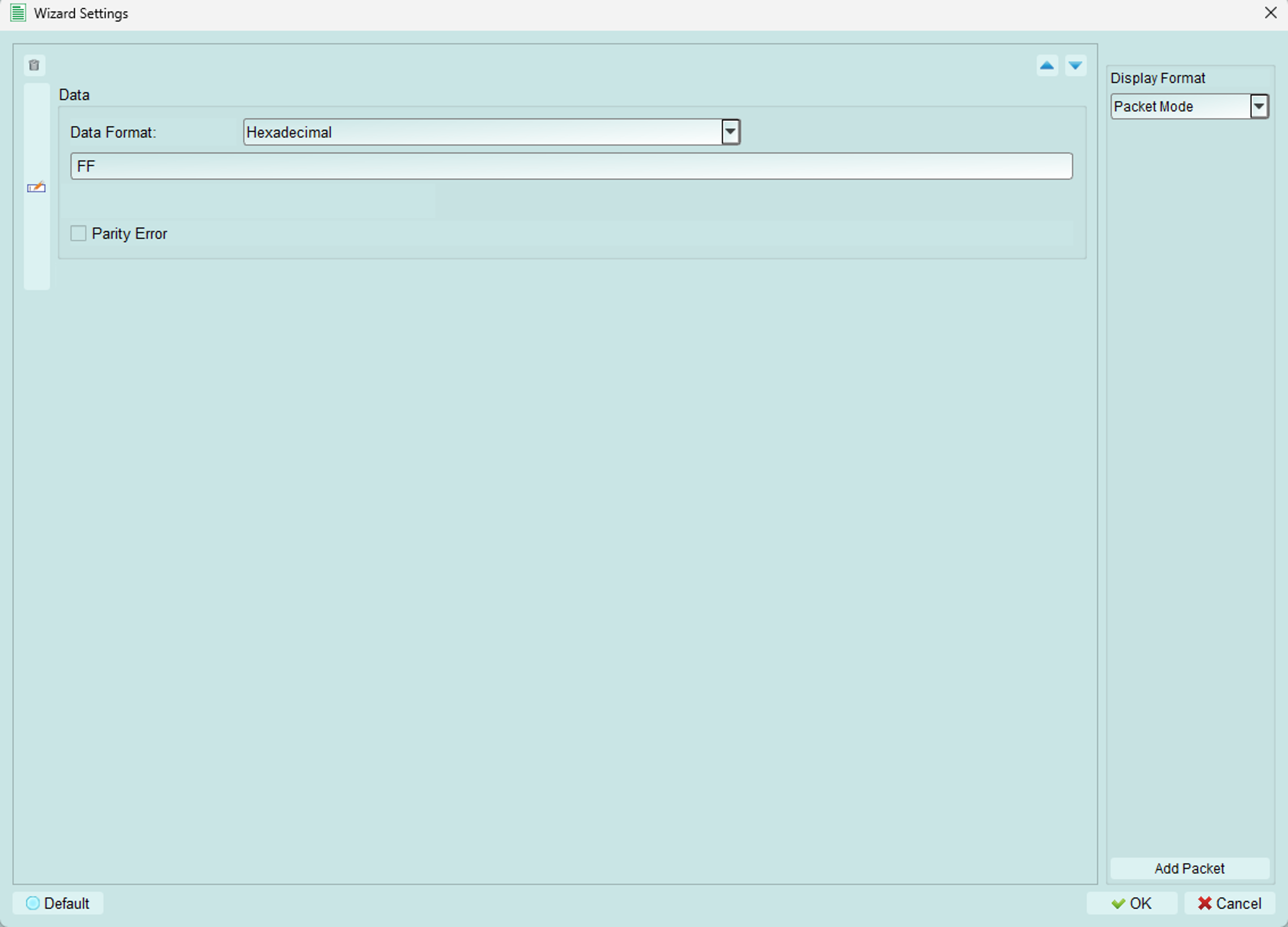
- Data Format: as described in Quick Send.
- Data: the data to send. The same notes as in Quick Send apply.
- Parity Error: you can deliberately send a parity error.
-
Delete the packet.
- Adjust the order of packets.
-
Change the display format. Two formats are supported:
-
Packet Mode: displays the data along with the START and STOP bits.

-
Data Mode: displays only the data.

-