Channel Labels
Now we focus on the left hand side of the UI, which is the channel label area. This is where we can manage all our channels, buses, and protocol decoders.
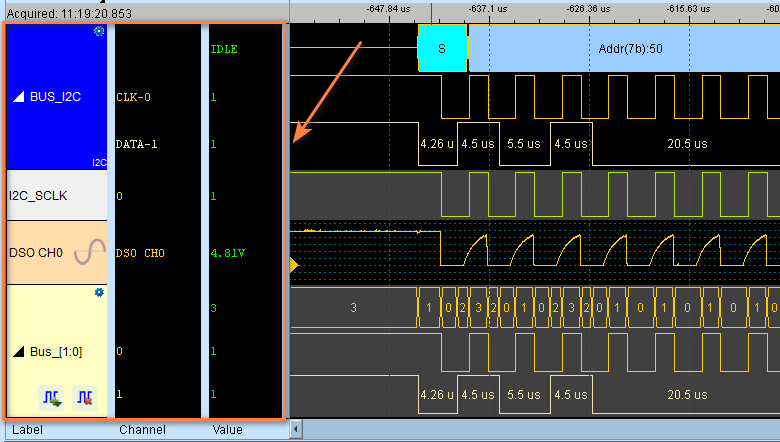
What's displayed in the channel label area?
- Channel names and numbers
- Bus groupings
- Protocol decode configurations
- Signal activity indicators (if enabled)
- Trigger conditions (if enabled)
Label Types
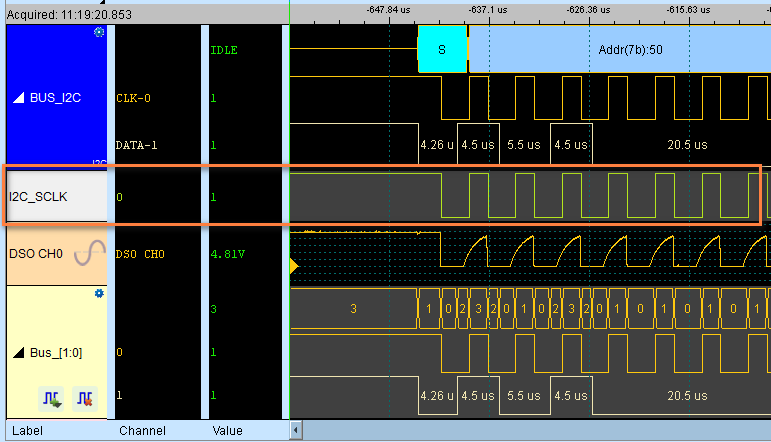
Digital Channel
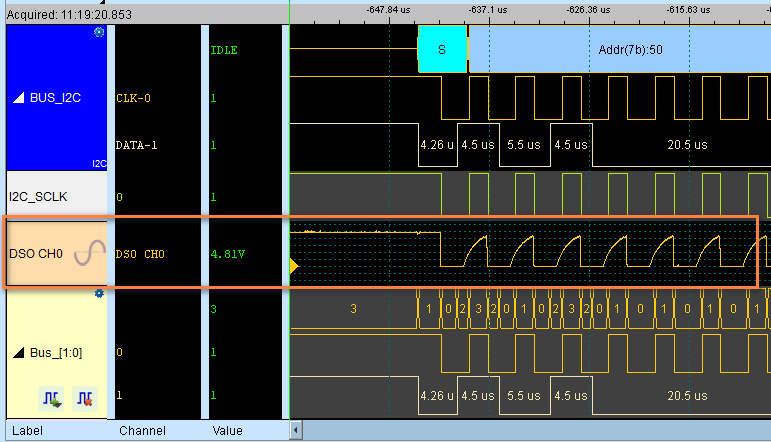
Analog Channel
Note
Only available for Mixed-Signal Oscilloscope series.
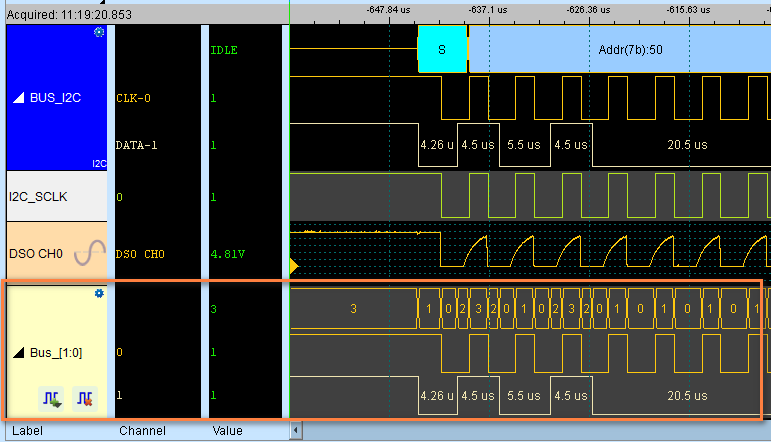
Parallel Bus
Protocol Decoder
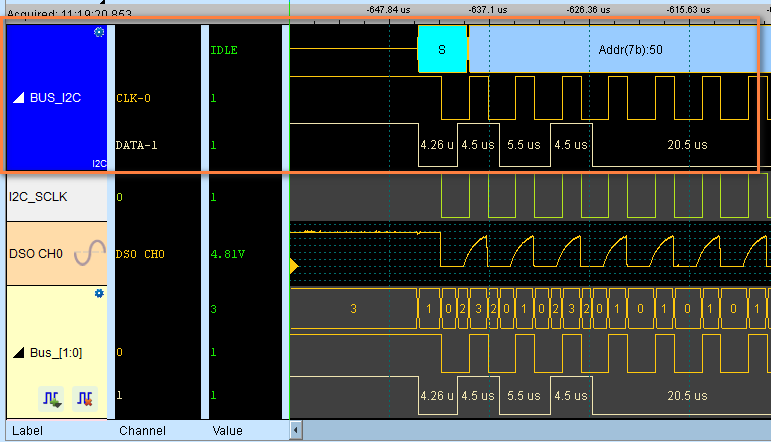
For protocol decoders, there is a  icon on the top-right corner of the label. Clicking on it will open the protocol decoder settings dialog.
Operations
Add channels
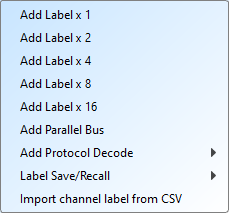
Once you click the  icon, a dropdown list pops up with the options you can add.
Delete channels
Select the labels to delete first, then click on the  button to delete the selected labels.
Combine channels
Drag one label onto another to form parallel buses.
Customization
Left-click on a channel label to open the channel settings dialog.
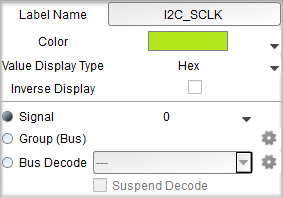
This allows you to:
- Adjust the source for this channel label by selecting from the Signal dropdown list (it does not change the actual recorded data)
- Rename the channel by editing the text field
- Edit the display format
- Edit the colors
- Choose whether to use inverted display
Tip
Use descriptive names like "SDA", "Clock", "CS" instead of "CH0", "CH1" to make it easier to understand.
For protocol decoders, you can check the Suspend Decode checkbox to stop the decoder from analyzing the data when the waveform area refreshes.