跳转至

Navigating the Data

There are some tips and tricks for navigating your data. Here are some of the most common methods.

Zooming / Panning

Panning Left and Right

Left mouse click and drag the waveform area to the left or right.

Zooming In and Out

Mouse wheel up or press Number Pad + to zoom in. Mouse wheel down or press Number Pad - to zoom out.

Quick calculation

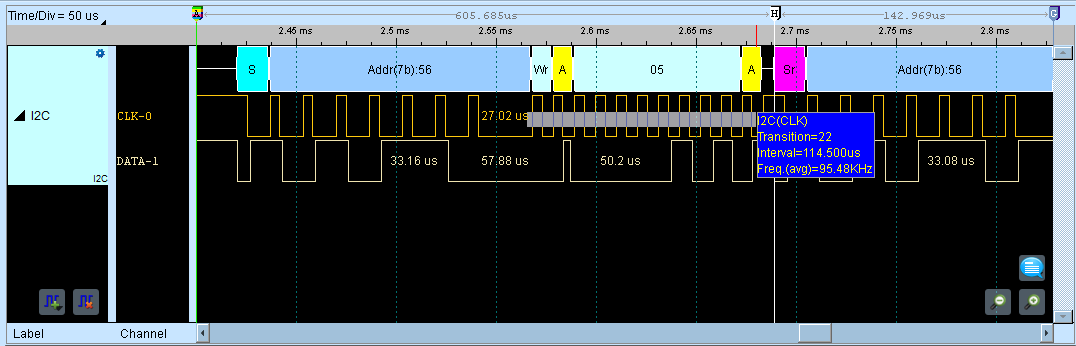
Right-click and drag to select region. You are able to get

  • Number of signal transitions in the selected interval
  • Length of time (duration)
  • Average frequency

For example, we can immediately estimate the I2C Clock frequency is about 95 kHz, as in the figure shows.

Quick Calculation

Quick Calculation

Quick note and marker annotations

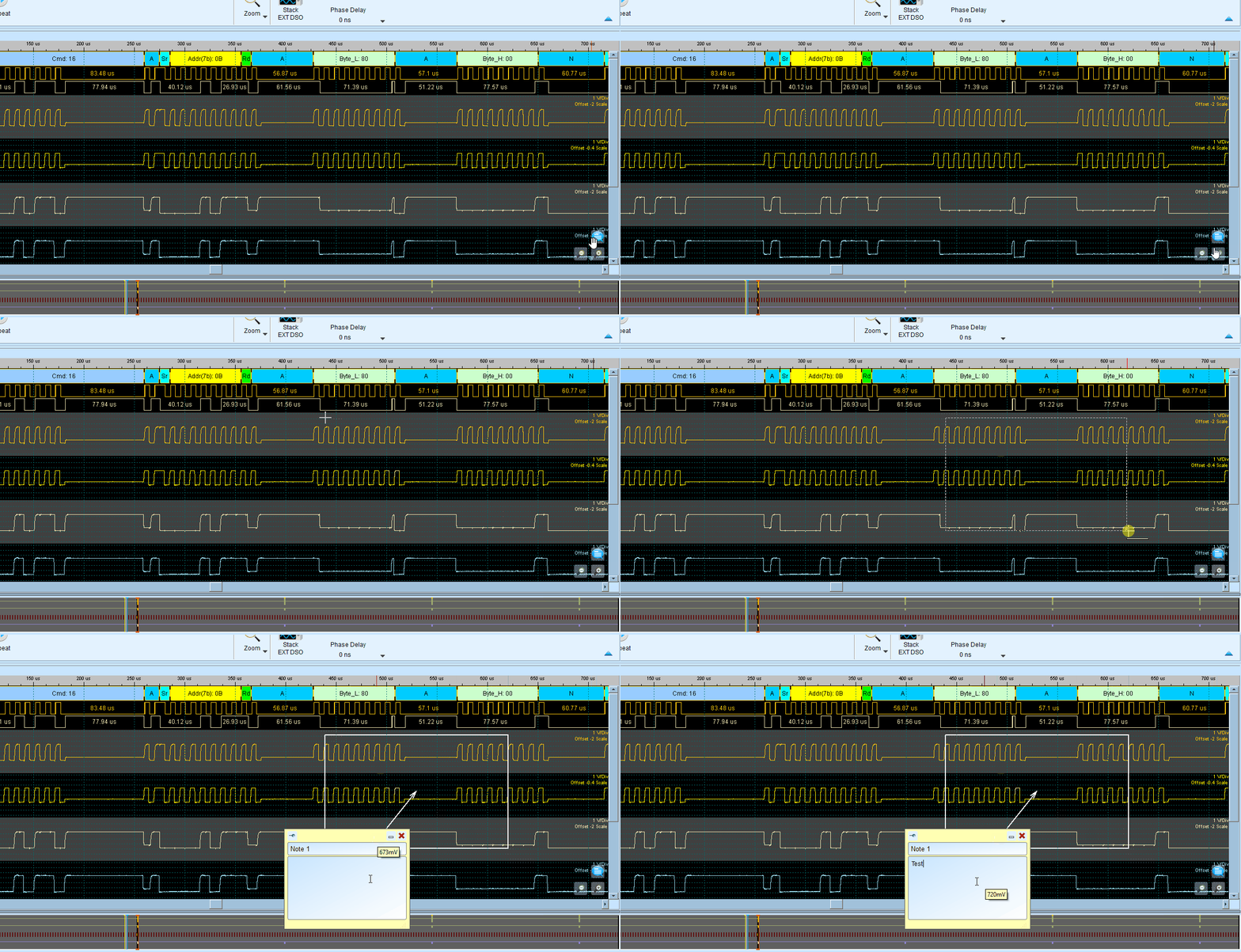
Add notes and visual markers directly in the waveform area to document important signals or conditions.

Quick Note and Marker Annotations

Quick Note and Marker Annotations

This gives you the ability to quickly add text labels, graphic markers, and notes at specific time positions. It makes it more convenient to document your findings anywhere in the waveform area.

Vertical adjustments

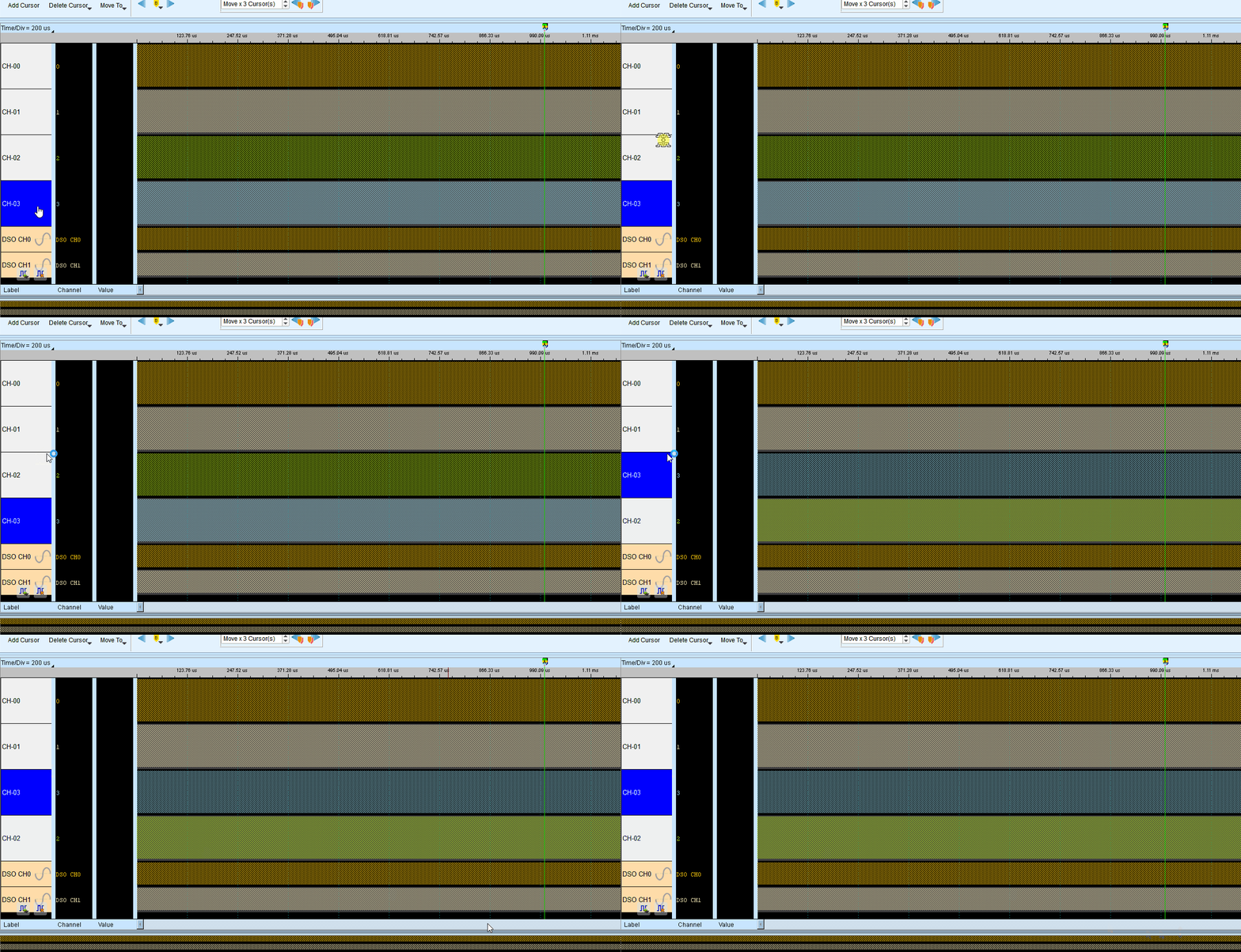
You can adjust the channel labels by dragging the label border.

Adjust Channel Labels

Adjust the height of the channel labels

Even the order of the channel labels.

Adjust Channel Labels

Adjust order of the channel labels

For more details of how to manage the channel labels, see also Channel Labels section.

Display Optimization

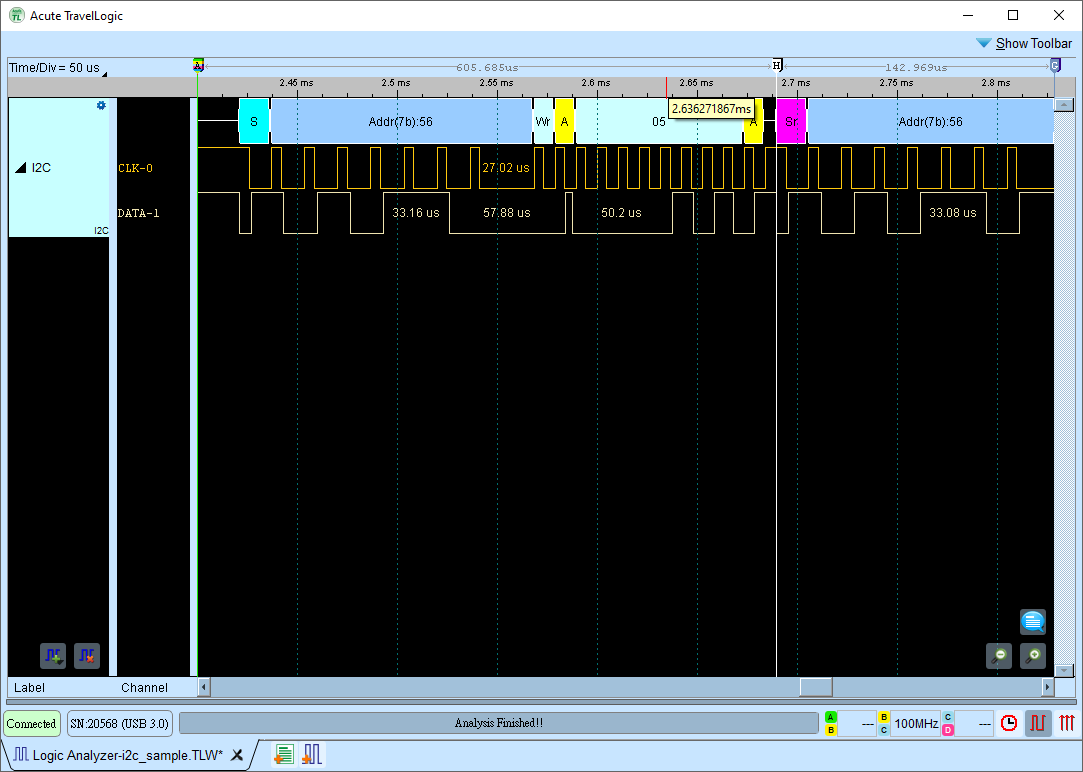
Hide the toolbar by clicking the arrow up icon.

Hide Toolbar

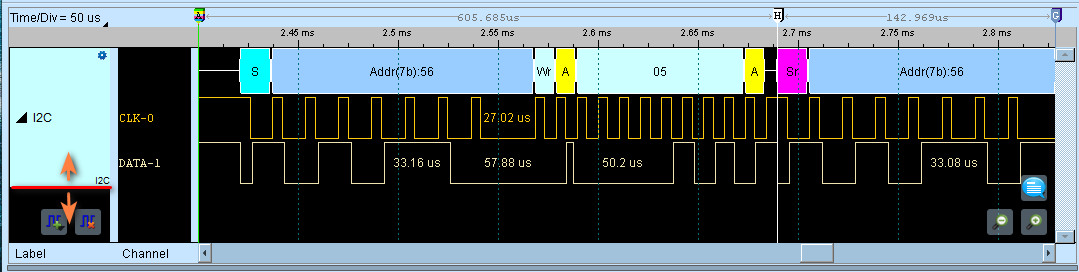
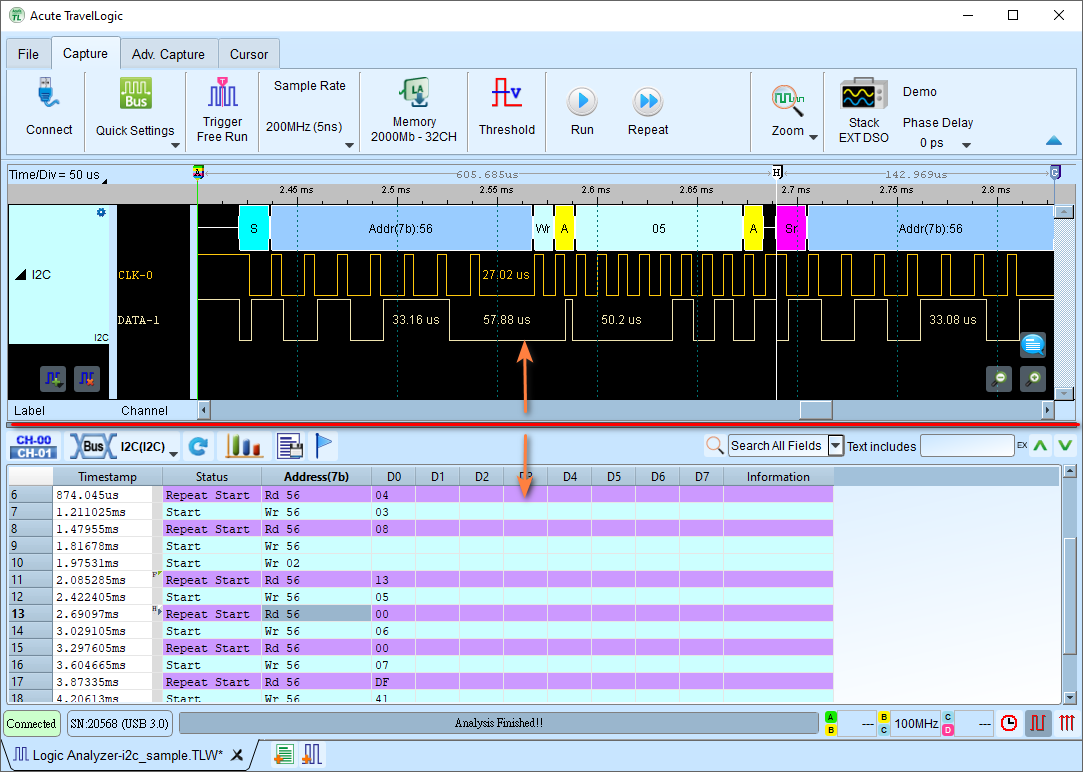
To maximize the waveform area, you can drag the divider between the waveform area and the report area to the bottom.

Drag Divider to Maximize Waveform Area

Maximize Waveform Area

Fast navigation via Cursors

You can use cursors to quickly navigate to specific positions in the waveform area.

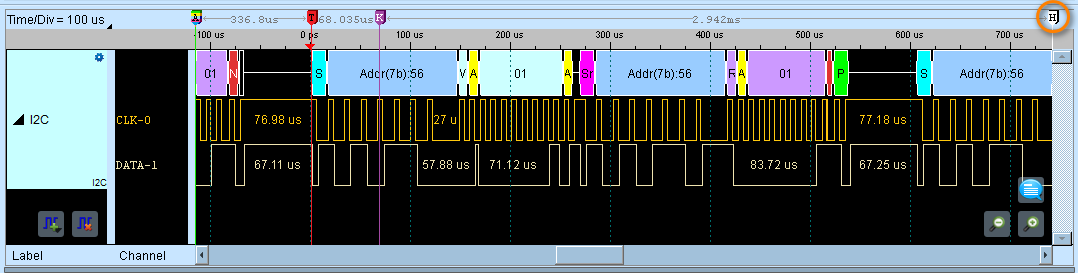
Let see the the following example. Suppose we have a Cursor H outside of our viewing area, and we want to quickly jump to it.

Cursor Position

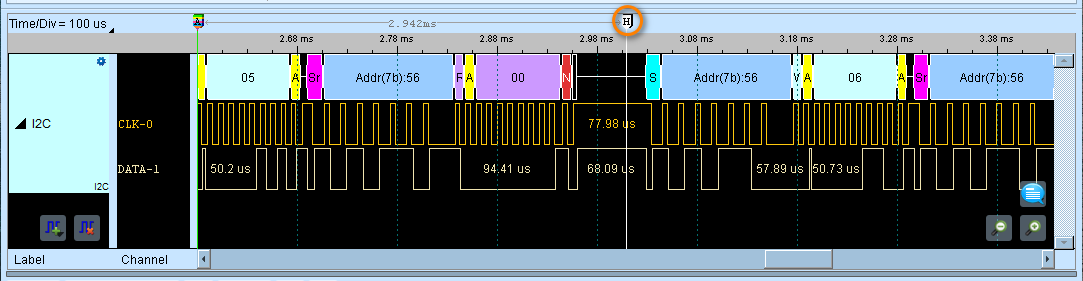
Press the H key to jump to Cursor H, and here we go. The Cursor H is now in the middle of the waveform area.

Cursor Position

They are just like bookmarks. Next time, you can drop cursors anywhere you want to quickly reference to, this helps you to navigate the waveform area quickly and efficiently. Add any cursors by pressing the Shift + A-Z key.

See also Cursor operations for more details.