Parallel Clause Trigger
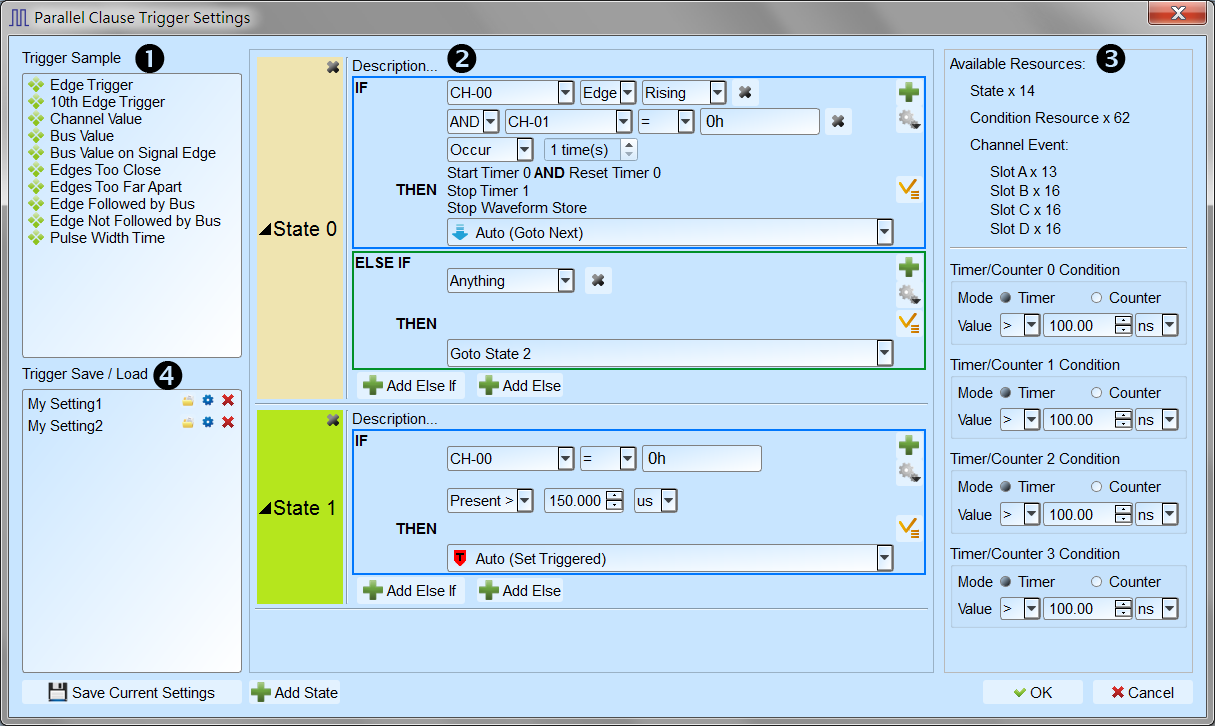
The Parallel Clause Trigger feature provides 16 States, 64 Condition Resources, and 4 Timer/Counter conditions (1) to help you locate the target waveform. You can also set the State branch control flow for each IF Clause and choose whether to store the waveform.
Trigger Sample: Provides several Trigger Samples for reference; you can also combine multiple samples for a more complex trigger condition. Hold the mouse cursor over a sample to show its description and a schematic picture.
Trigger condition settings:
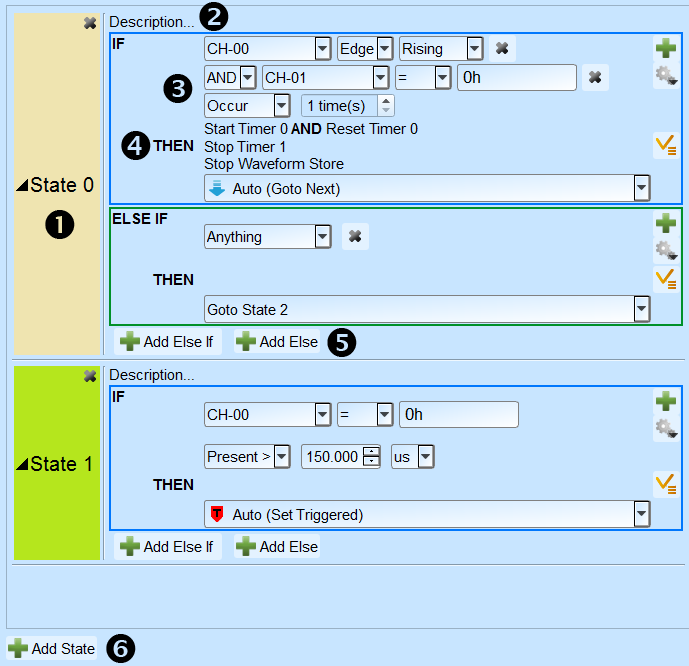
State button: Click to switch between Text Read Only mode and Edit mode.
State description: Click to edit a short user description for the State, maximum input text length is 80 characters.
IF Clause: Setup trigger conditions for Label selected in waveform area, and it is also available to setup AND/OR logic combination for multiple IF conditions.
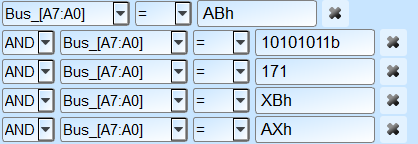
Channel Logic/Edge/Pattern compare: Specify value or edge condition for each channel label, it is also available to input X as don’t care value for the comparison. Input value ended with h for hexadecimal value; input value ended with b for binary value; input value not ended with b or h for decimal value.
Timer/Counter condition check: Check Timer/Counter conditions. The condition is set to True if the Timer/Counter value matches, and to False otherwise.
Occur and Present time check: An additional Occur-times check or Present-time check when all conditions in the IF Clause are True.
Control buttons
Add new condition: Click to add new AND/OR IF condition, the new IF condition will consume 1 Condition Resource.
Advanced control button, including:
Get Value From: Set IF condition value by all Label value from selected Cursor position in the waveform area.
Copy: Copy all IF conditions of current IF Clause.
Paste: Paste the copied IF conditions into current IF Clause.
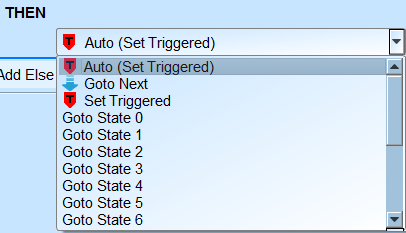
THEN Branch: Select the Branch or Trigger control flow when the IF Clause is matched (2). When select Auto, the Branch or Trigger control will be determined by current State order in the setting, the Action will be set as Trigger if current State is the last State in the setting; the Action will be set as Goto Next State if current State is NOT the last State in the setting.
Additional Then action: Setup Timer/Counter Start/Stop/Reset actions or Waveform Store Suspend/Resume for each IF Clause when condition matched.
Add new ELSE IF / ELSE Clause: Click to add a new ELSE IF / ELSE Clause. Each clause condition is checked from top to bottom, and the specified Action and Branch run when a clause condition matches. New clause conditions consume Condition Resources. If you do not assign an ELSE Clause, its condition defaults to "Anything" and it branches to the current State.
Add new State: Click to add new State Clause, the new State Clause will consume both State and Condition Resources.
Available Resources and Timer/Counter settings: Display remain available resource number and Timer/Counter settings.
Timer / Counter: Parallel Clause trigger provides 4 independent Timer/Counter resources, each resource could be selected to work in Timer or Counter mode. The minimum Timer interval is 12 Sample clock intervals (i.e. 60ns when working in 200MHz sampling mode), and the maximum Timer interval is 0x3FFFFFFF (i.e. 5s when working in 200MHz sampling mode). The minimum Counter value is 1, and the maximum Counter value is 0x3FFFFFFF.
Trigger Save/Load: You can save the current trigger settings with a description of up to 20 characters, or load previously saved trigger settings from the list. The saved settings are stored in the Working Directory as PClauseUserSetting.aqr. Copy and share the .aqr file to share the settings with another user.
Load the selected Trigger settings. You can also choose to overwrite the current Trigger settings, or to append the selected settings to the end of the current ones.
Edit the display name for the selected Trigger settings.
Delete the selected Trigger settings.
Timer / Counter features are provided in 300MHz, 250MHz, 200MHz and below sampling rate mode only.
If the trigger settings are not valid, the system holds and the status bar shows "Wait for Trigger"; you must press Stop Capture manually to retrieve the waveform.