Protocol Trigger
Introduction of trigger
The trigger function uses the logic analyzer's hardware and parallel processing to check, within a limited time, whether the signal under test meets the trigger conditions, and then starts data acquisition. A good trigger function must be both accurate and flexible.
Trigger Mode
Pre-Trigger
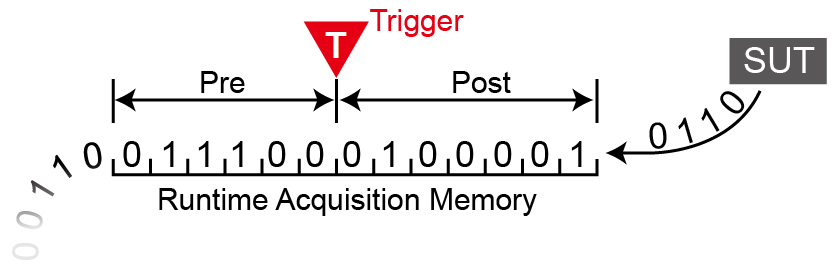
In certain applications, when the user wants to capture signals before the trigger point, the Pre-Trigger function must be enabled. After pressing the 'Start Capture' button, the logic analyzer will wait until the data fills the memory from the beginning of the buffer to the trigger cursor before allowing the trigger circuit to start operating (it starts operating, not issuing the trigger signal). Therefore, before the logic analyzer has filled the data between the buffer and the trigger cursor, any signal that meets the trigger condition will not cause the trigger circuit to issue a trigger signal.
Post-Trigger
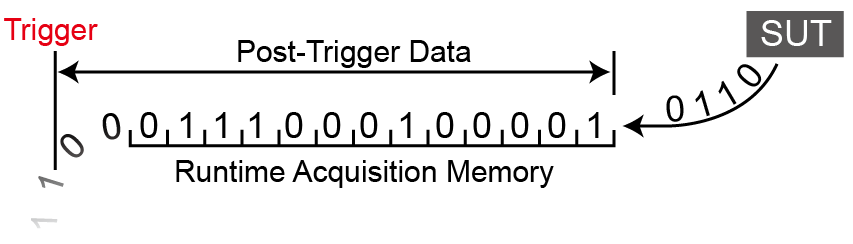
This is the most basic triggering method. After pressing the 'Start Capture' button, the logic analyzer will wait for the trigger to occur and then start capturing data from the position specified by the trigger cursor. Once the memory is fully filled with data, the capture will stop.
Delay-Trigger
In certain applications, when the user wants to capture signals after the trigger point and with a delay, the trigger delay function can be used to set the desired delay time. After the signal capture is successful, the trigger cursor will stop at the position where the data capture started.
Pass Count
Pass Count represents the number of times the set trigger parameters should be ignored. Under normal conditions, Pass Count is set to 0, which means data capture will start as soon as the trigger parameters are met. If set to N times, it means the trigger parameters must be met N+1 times before data capture begins. The maximum value of Pass Count will be automatically adjusted based on the specific model.
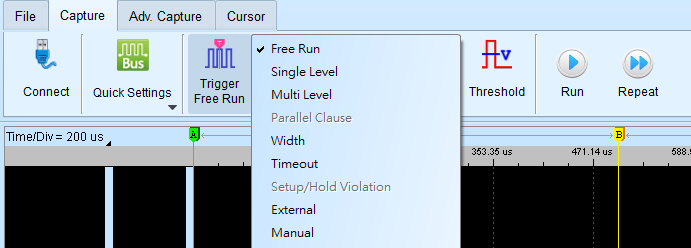
Choose to Trigger
Click on 'Trigger' in the toolbar and select the desired condition to use.